We assume most presenters will be in-person. If you need to present remotely, see the relevant instructions below.
Information for All Presenters
-
We strongly recommend the use of a 16:9 or 4:3 aspect ratio for your slides.
-
You should pace your talk carefully; time is of the essence and the program schedule will be strictly enforced. You can find the length of your talk in the program. Please aim to keep your talk at least 3 minutes under the slot length to account for setup and questions.
-
The AV Committee’s presenter questionnaire is now available. Please complete it as soon as possible. It asks whether you are giving an in-person or remote talk, whether you wish to record or stream your talk, and other important logistics.
-
Please submit this questionnaire once for each talk you will give at ICFP 2026 or one of the co-located events. Only submit if you are the main presenter; if someone else is the main presenter, they should submit instead.
-
You will receive a copy of your response. Please edit the response after submission if anything changes; do not submit a new response.
Information for In-Person Presenters
-
You should bring your own device to present your slides. Please ensure your slides are available offline/accessible from a different device in case of any technical issues.
-
Your presentation device should support HDMI output. If it does not, you are responsible for bringing the appropriate adapter.
-
During the breaks throughout the conference, take time to familiarize yourself with the room, and ask the Student Volunteer or a Video Chair present to help you test your slides and clarify any questions you might have.
-
Arrive at your session at least 15 minutes before it begins. Make your presence known to the session chair and student volunteers. During the break before your session starts, ensure that your presentation device is working, and your slides are accessible in order to avoid last minute difficulties.
Additional Details
-
During the conference, you will wear a badge/lanyard with your name on it. Please take this off before putting on a microphone!
-
If you have a handheld microphone, please speak into it closely.
-
If you use a Mac for presenting, your device has True Tone display technology. While your slides will look fine on the in-room projector or display, they will have a yellow hue on the livestream and in the recording. Please turn off True Tone to prevent this. You can disable this through Control Center, as shown below:
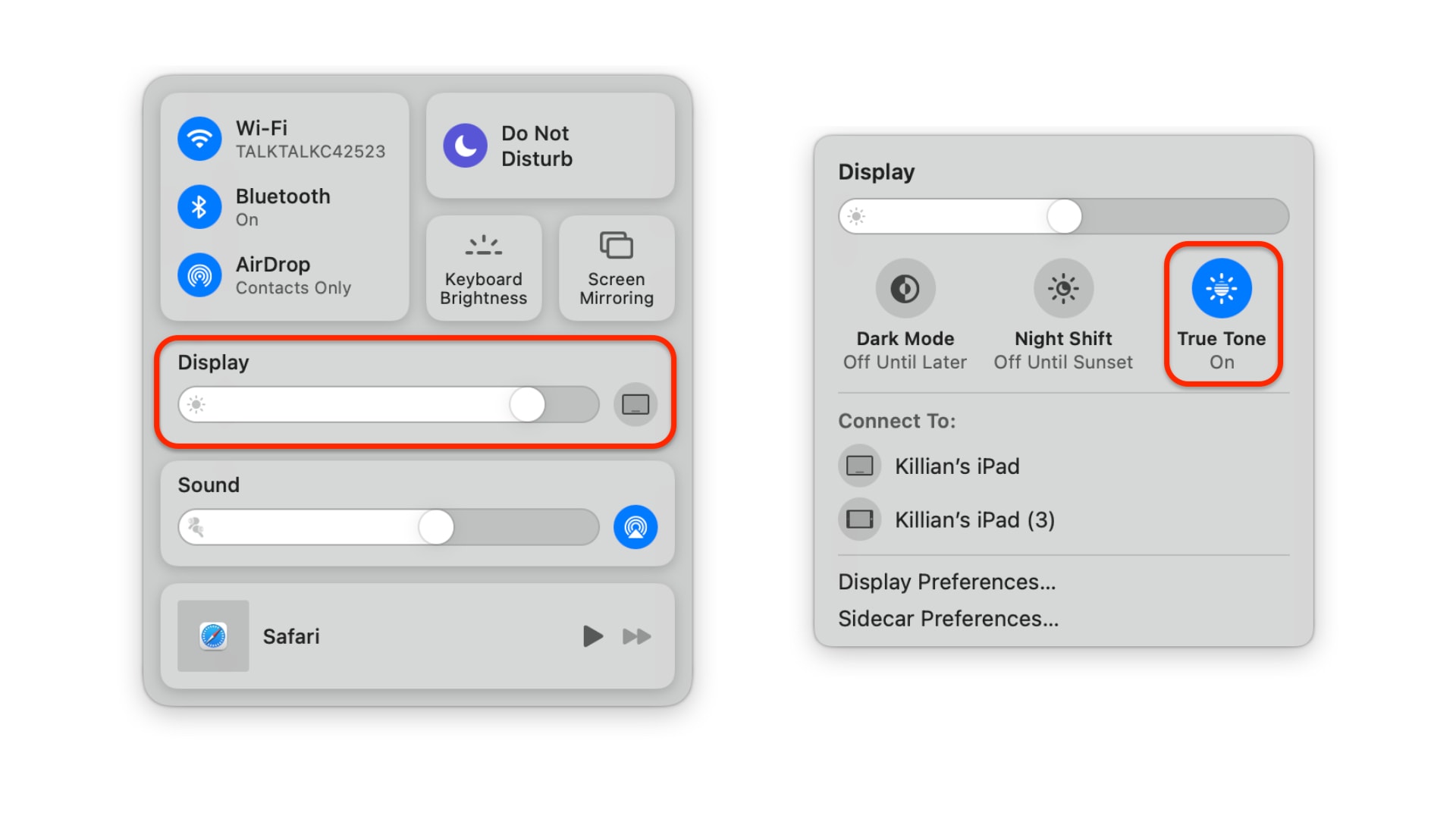
Please make sure True Tone is turned off.
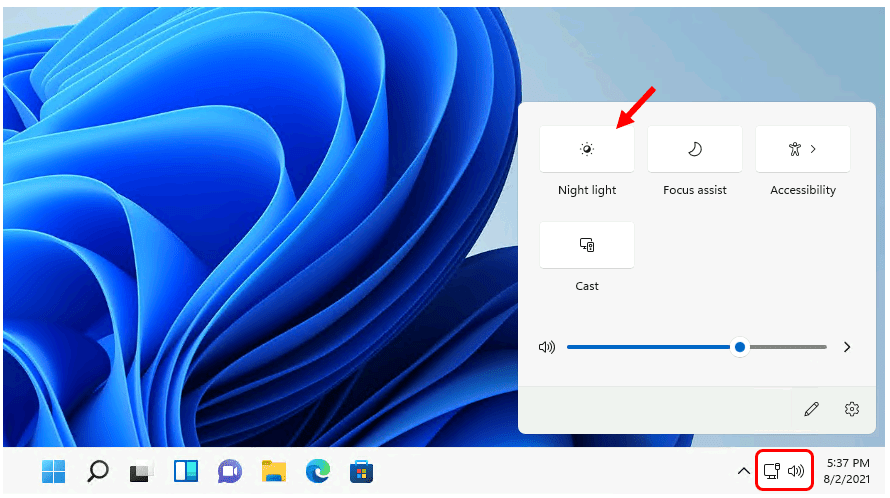
- Similarly, if your device has a night light mode or blue light filter, please disable this during your talk to ensure your slides look correct in-person and on-stream. You can disable this in Control Center on a Mac, or Quick Settings on a Windows device:
Information for Remote Presenters
If you plan to present remotely, please obtain approval from your respective program chair as early as possible. Additionally, inform the AV Committee of your plans via the presenter questionnaire mentioned above.
We support both live remote and pre-recorded talks, although we strongly encourage the former so that the talk and Q&A take place over the same medium. Live remote presenters may also provide a pre-recording as a backup, in which case they should follow both sets of directions below.
Pre-Recorded Remote Talks
Presenters may opt to submit a pre-recorded talk to avoid technical difficulties or overcome timezone differences. Please note that you will still be expected to participate in live Q&A after we play your pre-recorded talk, unless you have made other arrangements with your event’s organizers. For the Q&A portion of your talk, please follow the information for live remote talks.
If you are delivering a pre-recorded remote talk, it talk must have the Recorded badge in the program. If it does not, please ask your event’s organizers to add it for you.
Recording your Talk
There are many ways to record your talk. One of the simplest is to use Zoom by creating a meeting with just yourself, sharing your screen, enabling your microphone, and recording your “meeting”. You can edit your recording with tools such as iMovie or ActivePresenter.
Make sure your recording is at least 5 minutes under the duration of your talk’s time slot to account for setup and questions.
To ensure a successful presentation, it is crucial that your recording is of high quality, especially the audio. The AV team cannot fix poor-quality recordings, so it is essential to record it properly. We encourage you to check that your recording is clear and understandable prior to submitting it. Here are some tips for recording:
-
Avoid the use of a laptop’s built-in microphone for recording.
-
Avoid reverberant spaces: record in an environment that does not amplify echoes or reverb to keep the audio clear.
-
Keep the microphone at an appropriate distance from your mouth during recording to achieve a crisp and natural sound.
You can find more tips in this blog post from Laurie Tratt.
Submitting your Talk
Please submit your recording to the AV Committee at least three (3) days before your talk is scheduled to avoid last-minute issues. If you have a last minute change and suddenly need to switch to a pre-recorded remote talk, the following instructions still apply, but please also notify the AV Committee at sigplan-av+icfp26@googlegroups.com.
-
Save your recording as an mp4 formatted video with a name according to the following schema:
<EVENT_ACRONYM>-<SPEAKER_LASTNAME>-<TITLE_NO_SPACES>.mp4, e.g.,PLMW-Cook-ResearchandDevelopment.mp4. -
Upload your pre-recorded talk to a cloud file-sharing service such as Google Drive and ensure that the link is publicly shareable/accessible. Do not share your video using YouTube or Vimeo.
-
When filling out the presenter questionnaire, indicate in the “Talk Logistics” section that you will be pre-recording your talk. If you have already submitted the questionnaire and have a change of plans, please edit your response (do not make a new one). The form will provide you with a link to another form which you can use to submit a link to your pre-recorded talk.
Live Remote Talks and Q&A
These instructions apply both to live remote presenters and presenters with a pre-recorded talk and live Q&A.
Live remote talks and Q&A will take place via Discord. Presenters will be able to interact with the session chair and in-person participants during their talk and for live Q&A.
If you are delivering a live remote talk, it must have the Remote badge in the program. If it does not, please ask your event’s organizers to add it for you.
Setting up Discord
-
Create a Discord account if you do not already have one. If you created a new account, please verify your email address.
-
Join the ICFP 2026 Discord server.
-
After joining the server, you will be prompted with a Customization Question prompt.
-
Select the Presenter role.
-
Go to Channels and Roles located at the top-left of the server sidebar.
-
Follow the
Test Sessions, category.
-
-
You now have access to all the required Presenter channels.
-
For ease of communication, we recommend that you allow direct messages ICFP server members.
-
Select ICFP 2026 at the very top-left of the server sidebar.
-
Select Privacy Settings.
-
Ensure that Direct Messages is toggled on.
-
Preparing for your Talk
You are expected to participate in a test session prior to your talk in order to ensure it runs as smoothly as possible. If you cannot join us for a test session the day of your talk, please email the AV Committee at sigplan-av+icfp26@googlegroups.com with a proposed time slot so we can proceed. However, we encourage presenters to join for a test session shortly before their talk to prevent any changes between the test and the talk itself.
-
Join the
Test SessionsDiscord voice channel at least 40 minutes before your presentation. -
A volunteer will join to help you prepare for your presentation. If no volunteer joins, please contact the AV Committee. If are multiple presenters in your talk, please make sure all of them join the test session.
-
The volunteer will help you test the quality of your microphone, camera, screen sharing, and internet connectivity.
-
Once everything has been verified to work, the volunteer will create a private voice channel for your talk, which will appear at the top of the server’s channel list. Please join this channel, turn your camera on, and share your screen in preparation for your talk.
-
When the time for your talk arrives, the laptop managing AV in-person will join your voice channel. You will be able to see and hear the session chair and audience, and begin presenting as soon as the session chair introduces you.
For Q&A-only presenters, we suggest you join your corresponding talk-voice channel while your pre-recorded video plays. You may mute yourself to prevent making noise over the video.
You can follow the live stream of current talks on the ACM SIGPLAN YouTube channel.